VPN Setup

Download your VPN configuration

Use the steps below to install the OpenVPN client and import your configuration file to securely connect to the office network.

Quick Links:


Before you begin:

  • You’ll need admin rights on your device to install software.
  • Have your VPN username/password (may be different from Windows login).
  • Ensure a stable internet connection for the first sign-in.

Questions? Contact your administrator.

1) Install OpenVPN Client

Download and install OpenVPN Connect

1
Download and run the OpenVPN client installer for Windows.

Download OpenVPN Client

If prompted during setup, allow the TAP adapter installation.
2
Finish installation and launch OpenVPN Connect.
2) Download Your Config (.ovpn)

Click the button below to download your personalized configuration file. Keep it private and delete it after importing.

If your browser warns about the file type, choose Keep or Allow.

3) Import & Connect

1
Browse to the .ovpn file you downloaded and double click on it (or right click, Open)
2
When prompted, select OK to import the profile into OpenVPN.
3
Enter your VPN username and check the box for 'Save password' to display the password field. Enter your VPN password.
4
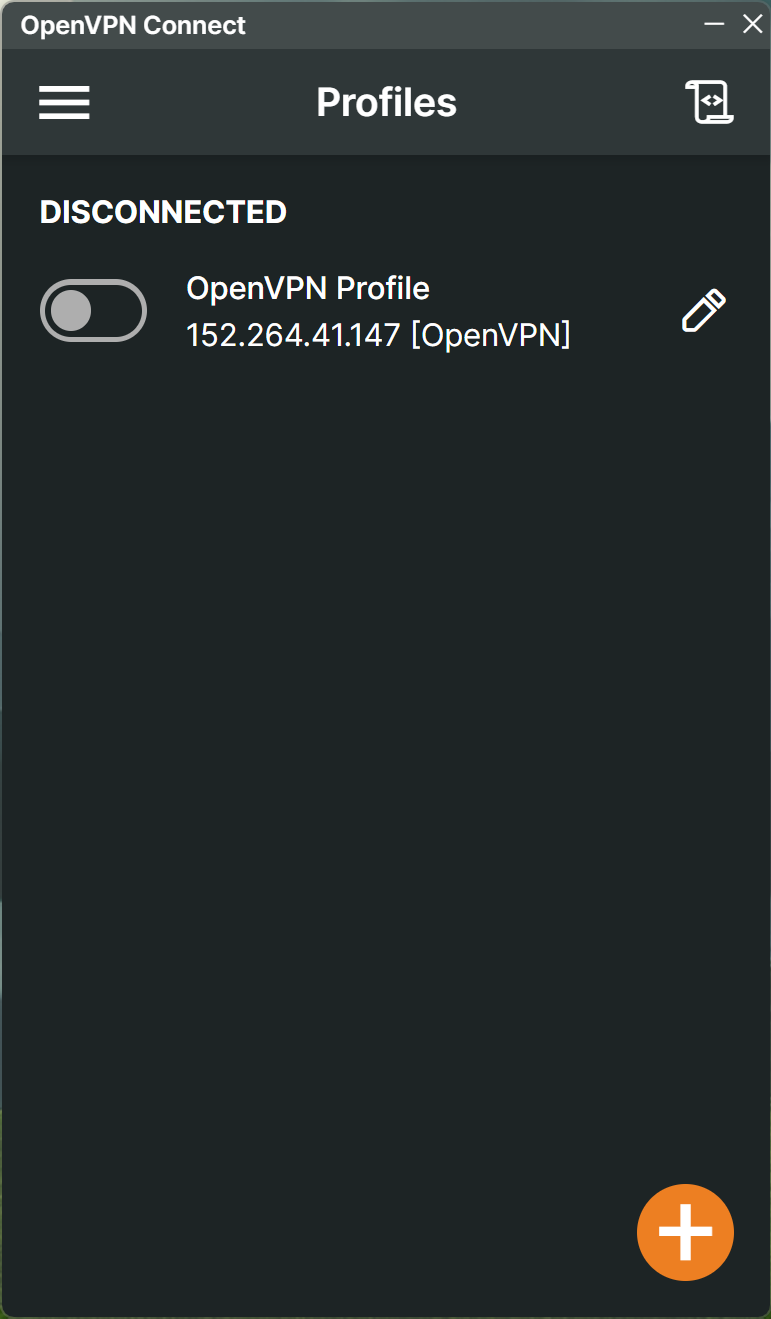
Toggle Connect. Wait until the status shows Connected and duration at the bottom.
5
Delete the configuration file you downloaded. This file contains sensative data that could be used by bad actors and should not be kept on your computer.
*
After the initial configuration, simply use the toggle button on the left side of the OpenVPN Profile after opening OpenVPN to connect or disconnect from the VPN.

Tip: If connection fails, review the error message, verify your system time is correct, or try switching internet connections. If you need additional help, please contact your administrator.